Find Sheet Music

   Musicnotes Sheet Music Viewer for iPad


Download for free on the Apple App Store

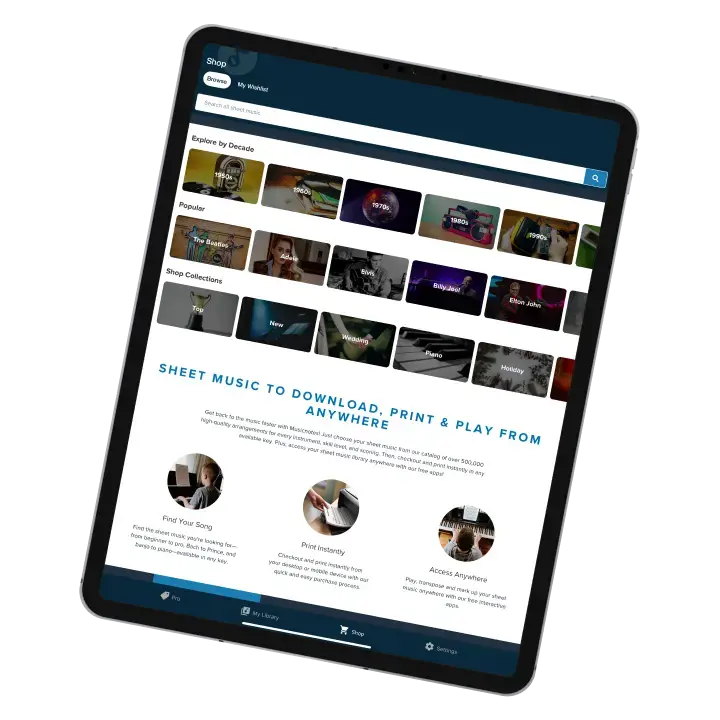
Sheet Music on Your iPad from Musicnotes.com

Stop lugging around stacks of sheet music. Access your Musicnotes sheet music library on your iPad instead! Just download this free app from the Apple App Store, link it to your existing Musicnotes account, we'll instantly import all of your previously purchased Musicnotes.com sheet music files* so you can display them on your iPad. Or, if you're new to Musicnotes, try one of the five free sheet music selections included.

Register for Updates

Sign up to receive news about Musicnotes.com sheet music for the iPad. We will not use your email address in any other way except to keep you up-to-date on any updates or news regarding the app.

Your E-mail Address:


New in Version 2.3.5 (Available Now!)

  • Page flip animation setting
  • Bug fixes

More Features

  • Transpose notation within the sheet music viewer (when transpositions exist).
  • Access to your entire library of Musicnotes sheet music and guitar tablature files.*
  • High resolution, professional arrangements and engravings.
  • Built-in Mark-up tools to draw, highlight, and type on your sheet music.
  • Easy page turns: just swipe your finger to flip pages (or set it to turn pages with just a tap).
  • Quickly jump to any page.
  • Zoom in on your notation.
  • Organize your music into custom set lists and folders.
  • Change the background paper type of your sheetmusic.
  • Buy from the world's largest selection of legal, downloadable sheet music and guitar tab.
  • Includes five free bonus songs: The Entertainer, Hello! Ma Baby, All the Pretty Little Horses, The Big Rock Candy Mountain, and Prelude in Db Major (Raindrop Prelude).
  • Free song of the month.
  • Supports the AirTurn BT-105 hands-free bluetooth page-turner pedal.
  • Conductor Mode: Turn pages for multiple iPads at once and send markup notes to your band members over WiFi or Bluetooth (requires multiple iPads).

* Musicnotes.com offers sheet music in three different file types: Musicnotes Files, Guitar Guru Sessions and Sibelius Scorch. Songs purchased in Guitar Guru format will import the associated tablature notation into the Musicnotes iPad app. Files in Sibelius Scorch format are not currently compatible with the app.

About Sheet Music Manager App

The purpose of this app is to allow Musicnotes customers the ability to view items they've purchased from our store on their iPad device. This provides an easy way to flip through pieces from any comfortable location.

Guest Account

If you signed in using the guest account button you only have access to the free songs provided with the app. You will not be able to sync songs you've purchased until you sign out and authenticate using the email address associated with your purchases.

Navigation Bar

Once your user is established, use the navigation bar located at the bottom of the main screen to view, download and purchase new pieces or change settings.

My Sheet Music: Toolbar

The my sheet music section contains three subsections: All Songs, Folders and Set Lists. You can toggle between these to organize your sheet music. Folders and set lists have a plus button which allows you to add a new folder or set list. When you click the edit button you will see checkboxes next to the items in the selection table below the toolbar. You can perform bulk actions which are explained later.

My Sheet Music: Cover Flow

If cover flow is enabled, you will see a graphical representation of the items in the section you're currently looking at. Use your finger to slide through the available items and tap an image to make a selection. If you prefer, you can turn off the cover flow by tapping the button on the top right of the my sheet music section.

My Sheet Music: All Songs


The first option on the navigation bar is my sheet music. All the sheet music you've purchased and synced with your account (including free sheet music) is accessible here. The cover flow provides a graphical preview of each piece. If you prefer, you can turn off cover flow using the button on the top right of the screen.
The edit button above your sheet music selection on the right side of the gray bar allows you to add multiple pieces to a folder or set list as well as remove them from the device.
To view a piece, simply tap it's row in the table or tap the current cover flow preview. Note: you can't open a piece in edit mode from the selection table.
When you tap the edit button, a new toolbar will appear at the bottom, under the selection table and each piece will now have a checkbox to the left. The edit button becomes a done button which allows you to exit edit mode. After checking which pieces you want to work with, choose an action using the buttons on the bottom toolbar: remove, add to folder or add to set list.
If you choose to add to a folder or set list, you'll be given a list of existing items. Highlight the folder or set list you want and click the add button. This popup also allows you to create a new folder or set using the plus button in the top right of the popup. You can also rename an item before you add the selected pieces.

My Sheet Music: Folders


Folders are used to organize your pieces. To view your folders, select the folder button in the middle of the gray bar just above the selection table.
You can add a new folder by tapping the plus button on the right of the gray bar.
To view a folders contents by tapping it's row or cover flow image (when not in edit mode).
Holding your finger down over a folder's row for a few seconds will initiate edit mode and the row you are on will change to a state of dragging, allowing you to reorder that folder.
When you enter edit mode by hitting the edit button, you can remove multiple folders by checking them and hitting the remove button on the bottom toolbar. Edit mode also allows you to reorder folders by holding and dragging a row. When a row is selected in edit mode, you can also rename a folder.

After opening a folder, you will be taken to a familiar screen which contains just the pieces you specified for that folder. Use the add button on the gray bar to add songs not already in the folder. In edit mode you can drag and reorder the pieces or use the checkboxes to remove items from the folder. Holding down your finger on a row will initiate edit mode. If you sync the free sheet music of the month, it will automatically be placed in a special folder called "Free Sheet Music". Only free sheet music of the month can go in this folder.

My Sheet Music: Set Lists


To view your set lists, tap the set list button in the middle of the gray bar which is just above the selection table.
Set lists are very similar to folders when it comes to how you create, modify and populate them. The main diffrance is when you open a piece contained in a set list, the sheet music viewer will have arrows and a menu button which allows you to navigate between the set's pieces.
There is an add button which allows you to add new sets and an edit button which allows you to reorder, rename and remove set lists.
Just like with folders, you can hold your finger down over a row to initiate reordering a set.
To view and edit the contents of a set list, simply tap a row in the selection table or tap an image in the cover flow.

When viewing a set list you will notice a number box next to each piece. When you change this number, it will update the order for you automatically. You can rename, drag and remove songs from the set list just like with a folder in edit mode. Use the plus button on the gray bar to add new songs to the end of the set list.
To start viewing a set, make sure you're not in edit mode and click the piece you want to start with. After the piece opens in the viewer you can navigate through the set list as described later.

Sheet Music Viewer


When you select a piece from the all songs section or a folder, the piece will open with standard controls.
Use the swipe motion with your finger to quickly change to the next page. You can set the page change method to use a single tap instead of a swipe in the settings. There are also page numbers on the bottom toolbar which allow you to quickly jump to any page.
You can zoom in on the current page using the common pinch method. After you've zoomed in, you can quickly return to the standard zoom by double tapping the page.
After you're done viewing a piece, use the my sheet music button on the bottom left to return to the my sheet music section.

Sheet Music Viewer: Mark-up Tools


To add a text comment, tap the menu button in the lower right. Make sure text comments is highlighted and the switch is on. When you switch the menu button on, the menu will hide and you and the tool will be active. When the tool is active, the icon on the menu button will be highlighted in yellow. When the tool is active and the menu is dismissed, tap the page where you'd like the comment to begin.
A text editor window will popup. Type your note how you'd want it to look on the screen in the window and hit "Save" when you're done. The editor window allows you to select a font, size and color. To edit a comment which already exists, just tap it quickly and the editor window will display. You can always delete a note using the editor window.
Once a note is on a page, if you hold your finger over it for a few seconds it becomes draggable.

From the menu, you can switch the mark-up tool from text comments to highlighter or pen. Each tool has its own submenu which allows you to hide / show and delete that tools markings for a given piece. Switching tools and their properties will automatically active the tool.
When using a highlighter you can choose size and color. There is also an eraser option selectable at the end of the color list. To begin highlighting, make sure the switch is set to on and the menu is dismissed. You'll notice he highlighter icon on the menu button turn from white to yellow. Anywhere you touch on the page will be highlighted with the color and size you selected.
Pen is very similar to highlighter, the only difference is instead of drawing behind the pages content, anything you draw will appear above the current pages notation.
When you are done using any tool, open the menu and set the switch off. The icon on the menu bar will go from yellow back to white.

Sheet Music Viewer: Transpose


If transpositions are available for a purchased arrangement, a button title transpose will be available on the right side of the menu's bottom toolbar. To transpose the sheet music to another key, simply tap the transpose button from the menu and a list of all available keys will be displayed. Select the key you wish to transpose to, and if the transpositions have already been downloaded to your iPad, your key will change. If the transposition has not yet been downloaded, you will be prompted to download it. Once a transposition has been downloaded to the iPad, it will remain stored on the iPad for offline use.

Sheet Music Viewer: Set List


Set lists with more than one song will have a button on the viewer's toolbar to the left of the menu button. You can tap this button to quickly jump to any song in the set. There are also arrows next to the page numbers which allow you to jump to the next sequential pieces in your set list.
If you are on the title page or page one and you're viewing a piece which isn't first in the set list, when you swipe or tap back a page it will actually switch to the last page of the previous piece in the set list. The same goes for the last page, if you're not on the last piece in the set list and you swipe or tap from the last page it will load the next piece in the set list.

Sync

If you have made new purchases, they will show up here first. If you're online and have your alert settings on, you will be notified automatically if there are new items and given the option to sync them. This screen also allows you to turn off songs you don't want, to save storage space. You can sort the list with items that have been marked on, off or both.
Once you have selected which songs you'd like to appear on your sheet music list, hit the sync button and it will download or delete based on the on / off switch for each song. The lower left refresh button will update the songs you have available if you've made any recent purchases. You must be online to sync or refresh (Note: the syn button will only appear if you've made changes form the last sync).

Your Account Settings (Change User)

Click on the settings button in the bottom navigation bar then hit the "Change User" button. Click to accept the confirmation and it will sign you out and take you to the authentication screen. Note, if you sign out all your synced music and notes will be lost.

Sync Settings

In the settings tab, you can turn off auto-refresh, which searches for new songs and updates the songs available in sync list. If auto-refresh is on, you can also toggle the alerts. By default the app will notify you when there are new items in your list.
Turn on the "Sync Free Song of the Month" switch and next time you refresh your song list, it will contain that month's free song.
You can choose to include transpositions for your songs during sync. You can still download transpositions individually while viewing a piece, but turning this option on will download all transpositions so they are available. If the alert setting is on, you will be notified of new transpositions that are available. Turning this option on will increase download time as there is more data being synced.

Sheet Music Viewer Settings

The "Paper Type" setting allows you to change what kind of background paper your piece is displayed on. Tap the blue arrow on the right and a window will appear that allows you to choose from an assortment of different paper types. Once you’ve selected the type you want, touch the “Set Background” button at the top of the window and you will now see that paper in the background when viewing a piece.
The "Page Change" option allows you change how you move to the next or previous page. The default mode is swipe, in which you drag the page with your finger, sliding the next or previous page into view. It only takes a small swipe for the page to change. If you chose "Tap" mode, to change the page all you have to do is quickly tap the left side of the screen to move back a page or the right side of the screen to move to the next page.
If you play fast and the page change animations are slowing you down, turn the "Page Flip Animation" switch off. The next time you are viewing a piece it will instantly jump between pages.

Contact Us

Please view our contact page for all of our information.

Get Support

To get support for our iPad application, please follow the links on our contact page.

We think your country is:United States Click Here to change it.
Join Us: on Facebook on Twitter
Musicnotes.com's
Sheet Music Affiliate Program

  
Copyright © 2012 Musicnotes, Inc.
... .